How to Track Anime on Anime Sama
Stop losing your place mid-season. Anime Sama keeps every series, episode, and list in one spot — and this guide shows you how to use it from your first search to a fully synced library.
Table of Contents
Why Bother Tracking Your Anime?
If you follow more than two or three series at once, you already know the problem: you finish episode 6 on your phone, open the app on your tablet a week later, and have no idea where you stopped. Notes apps, browser bookmarks, and screenshots only get messier as your backlog grows.
Anime Sama was built around solving exactly that. The tracking tools sit alongside streaming, so you never need a separate app like MyAnimeList unless you want one. Your lists, episode counts, and resume points live inside the same interface you use to watch.
To unlock full tracking, you need a free account. If you have not set one up yet, follow our registration guide first — it takes about two minutes. Already registered? Make sure you are logged in before you start building lists.
Understanding Watchlist Categories
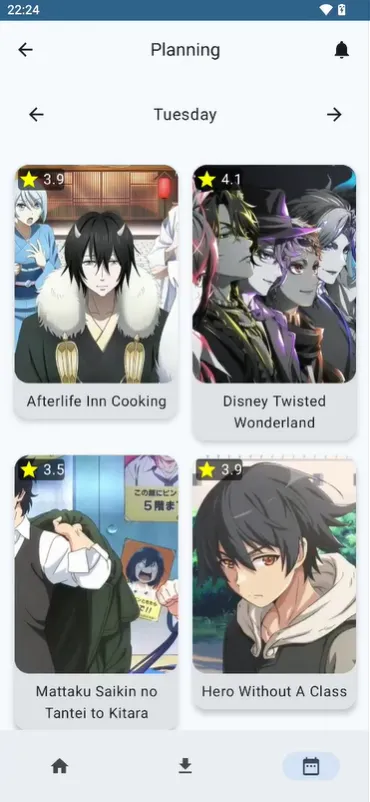
Anime Sama organizes every title into one of five default lists. Think of them as folders that tell the app — and you — where each show stands in your journey.
Watching
Series you are actively following right now. New-episode alerts prioritize titles in this list, and your home screen surfaces them first when a fresh episode drops.
Plan to Watch
Your backlog — shows friends recommended, seasonal picks you bookmarked, or classics you mean to start someday. Nothing wrong with a long list here; that is what weekends are for.
Completed
Finished from start to finish. Moving a show here keeps your Watching list clean and helps the recommendation engine understand what you actually enjoy.
On Hold
Paused mid-season — maybe the pacing slowed down, or you are waiting for more episodes to binge. Your progress stays saved so you can jump back in without starting over.
Dropped
Shows you decided not to finish. Honest lists make better recommendations. You can always move a title back to Watching if you change your mind.
Adding Anime to Your Lists
- 1
Open the App or Website
Launch Anime Sama on your Android device. If you have not installed it yet, download the latest APK from our installation guide.
- 2
Search for a Title
Tap the search icon and type the anime name in French, English, or Japanese. Results appear as you type, including ongoing seasonal shows and completed series.
- 3
Open the Anime Page
Select the correct entry from the results. You will see episode listings, synopsis, and language options (VF, VOSTFR, Arabic subs) on the detail screen.
- 4
Tap "Add to List"
Look for the list icon or "Add to List" button near the title. Choose Watching, Plan to Watch, or any other category. The show appears in your library immediately.
Quick add from home: Long-press any anime card on the trending or seasonal sections to add it to a list without opening the full detail page.
Marking Episode Progress
Tracking only works if you keep it updated. The good news: Anime Sama does most of the work automatically when you stream inside the app.
Automatic Tracking
When you watch an episode through the built-in player, the app marks it as seen once you pass roughly 80% of the runtime. Your resume point saves even if you close the app mid-episode.
Manual Marking
Tap the checkbox next to any episode on the detail page to mark it watched or unwatched. Useful when you watched elsewhere or want to bulk-update a rewatch.
Bulk Actions
Rewatching a whole season? On the episode list, tap the menu icon (three dots) and choose "Mark all as watched" or "Mark season complete." When you finish a series entirely, move it from Watching to Completed with one tap from the list view.
Syncing Progress Across Devices
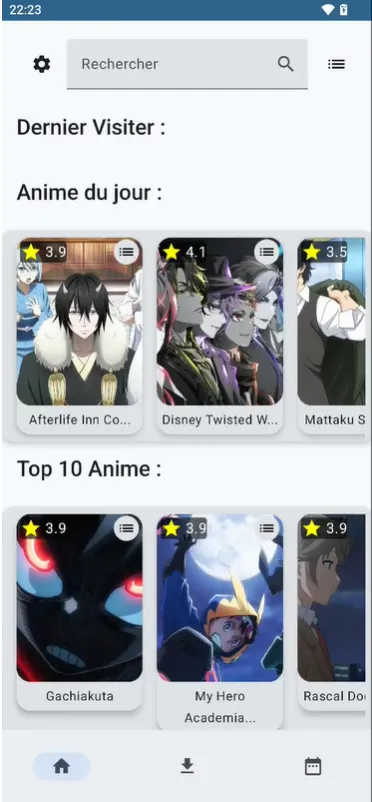
Cross-device sync is one of the main reasons to create an account. Watch episode 4 on your phone during lunch, then continue episode 5 on your tablet that evening — the app picks up exactly where you left off.
- ✓ Sign in with the same account on every device (email, Google, or Facebook)
- ✓ Progress syncs over Wi-Fi or mobile data within a few seconds
- ✓ Watchlists, ratings, and playback settings travel with your account
- ✓ Guest mode works for browsing, but lists and history stay on that device only
Having sync issues? Log out and back in, or check that you are running the latest version from the official homepage. Our about page covers community support channels if you need help from other users.
Pro Tips and Common Questions
Import from MyAnimeList or AniList
During profile setup (or later in Settings → Import), you can pull an existing list from MyAnimeList or AniList. Export your XML from the other service, upload it in Anime Sama, and your backlog transfers in minutes.
Enable Episode Notifications
For shows in your Watching list, turn on release alerts in the anime detail page. You will get a push notification when a new episode is available — usually within an hour of the Japanese broadcast for simulcast titles.
My list did not save
Confirm you are logged in (profile icon shows your username, not "Guest"). Lists added in guest mode disappear if you clear app data. Create a free account via our register page to keep everything backed up.
Progress shows the wrong episode
Open the episode list, uncheck the incorrect entries, and mark the right one manually. If automatic tracking keeps misfiring, try clearing the app cache from Android Settings → Apps → Anime Sama → Storage.
Start Tracking Today
Download Anime Sama, create your free account, and never lose your place in a series again.